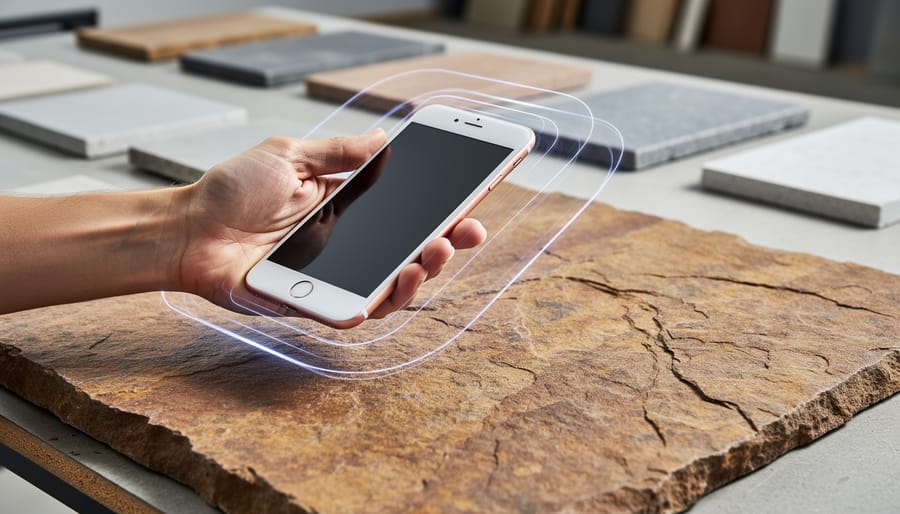
You can capture a complete 3D model of natural stone using nothing more than an iPhone or iPad and the built-in Object Capture API introduced in iOS 15. This photogrammetry technique transforms a series of overlapping photographs into detailed digital models suitable for architectural visualization, fabrication planning, and design mockups, typically requiring 20-40 minutes of shooting time and basic familiarity with camera positioning.
The technology democratizes what once demanded expensive equipment and specialized software. While a professional photogrammetry rig offers advantages for high-volume production work, iOS photogrammetry delivers surprisingly accurate results for individual stone samples, slabs, and installed features. Architects can model existing stonework for renovation projects. Fabricators can digitize sample pieces for client presentations. Designers gain the ability to test material placement virtually before cutting or installing expensive natural stone.
The quality depends entirely on your capture technique. Proper lighting, systematic camera paths, and sufficient overlap between images determine whether you’ll produce a clean, measurable model or a distorted approximation. Stone presents specific challenges: reflective polished surfaces can confuse photogrammetry algorithms, while heavily veined or patterned materials provide ideal surface features for accurate reconstruction.
This guide walks through the complete iOS photogrammetry workflow tailored specifically for natural stone applications. You’ll learn which iOS devices work best, how to prepare stone samples for optimal capture, the precise shooting patterns that ensure complete coverage, and how to process your images into usable 3D models using both native iOS tools and third-party applications.
What You’ll Need for iOS-Based Stone Photogrammetry
Getting started with iOS photogrammetry for stone modeling requires surprisingly minimal investment compared to professional scanning equipment. The technology built into recent Apple devices, combined with the right apps and a few basic accessories, puts high-quality 3D scanning within reach of most professionals and serious hobbyists.
The foundation of your setup is the iOS device itself. For optimal results, you’ll need an iPhone 12 Pro or later, or an iPad Pro (2020 model or newer). These devices include LiDAR sensors that dramatically improve scanning accuracy and work exceptionally well in challenging lighting conditions common with stone surfaces. While earlier iPhones can capture photogrammetric data using camera-only methods, the iPhone and iPad LiDAR 3D scanning capabilities deliver noticeably better results for materials with complex textures and reflective finishes.
Here’s what you’ll need to assemble:
- iOS device with LiDAR (iPhone 12 Pro or later, iPad Pro 2020+) with at least 128GB storage for processing larger stone installations
- Photogrammetry app such as Polycam, 3D Scanner App, or Scaniverse (all updated for 2026 with improved stone material handling)
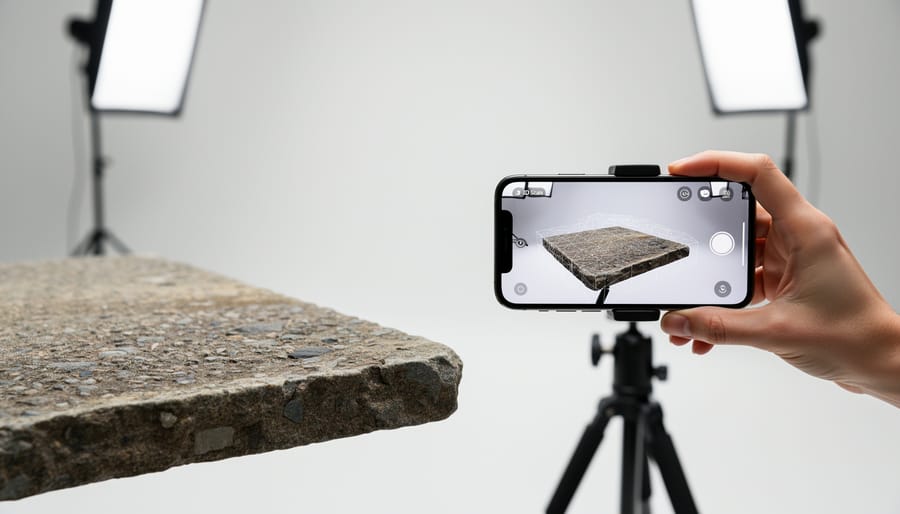
- Portable LED light panel or ring light (5000K-6500K color temperature) to eliminate shadows on polished stone
- Laser distance measurer or tape measure for establishing accurate scale references
- Microfiber cloths for cleaning stone surfaces before scanning
- Tripod or gimbal stabilizer for capturing large installations without hand shake
- External battery pack for extended scanning sessions on job sites
Optional but valuable accessories include color calibration cards for matching stone hues accurately, anti-glare spray for highly polished surfaces, and a small step stool for reaching elevated sections safely. You’ll also want reliable cloud storage or an external SSD, as raw photogrammetry projects of complex stone installations can easily consume 10-20GB before processing.
Most professionals find that investing in a quality lighting setup pays immediate dividends. Stone’s reflective properties and deep veining patterns demand consistent, diffused illumination to capture faithful texture detail.
Important Considerations Before You Begin
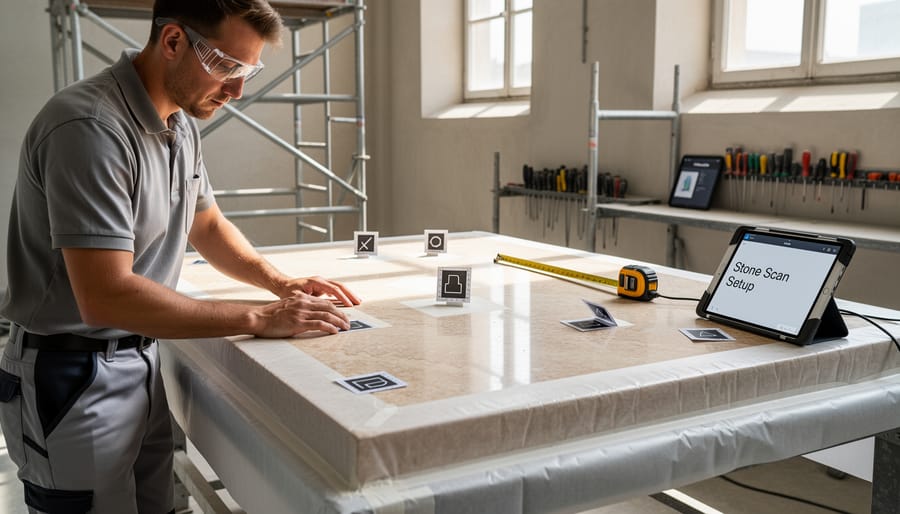
Before you start scanning stone with your iOS device, you need to address several practical and safety concerns that differ from typical photography projects. Stone installations present unique challenges, particularly when working with large surfaces, elevated locations, or delicate finishes.
If you are scanning stone facades, monuments, or elevated installations, assess site access carefully. Working from ladders or scaffolding while operating your iPhone or iPad divides your attention and requires secure footing. Use proper fall protection equipment when working above shoulder height, and always maintain three points of contact when climbing. For commercial buildings or public installations, verify that you have permission to access the site and use necessary equipment. Some locations require specific insurance or safety certifications before allowing scaffold work.
Lighting equipment poses specific risks around stone. Avoid placing hot continuous lights directly against stone surfaces, as rapid temperature changes can stress certain materials. When scanning polished granite, marble, or quartzite, position lights to minimize glare that will create unusable reflections in your photos. Diffused natural light often works best for these highly reflective finishes.
Plan for substantial data storage before beginning. A thorough scan of a kitchen countertop typically generates 150 to 300 photos, resulting in 5 to 15 GB of raw data before processing. The final 3D model adds another 2 to 8 GB depending on resolution settings. Ensure your iOS device has adequate free storage, and prepare a backup location such as iCloud or an external drive for archiving project files immediately after capture.
Step-by-Step Process for Capturing Stone with iOS Photogrammetry
Preparing the Stone Surface and Environment
Before you start scanning, the stone surface needs proper preparation to ensure your iOS device captures accurate data. Begin by thoroughly cleaning the stone with a pH-neutral cleaner appropriate for the specific material, avoid harsh chemicals that might temporarily alter the surface appearance or leave residue that creates artificial reflections.
Remove all nearby objects that could create unwanted reflections or shadows, particularly metal fixtures, glass, and glossy decorative items. For polished stone surfaces like marble or granite, reflections pose the biggest challenge. Position diffused light sources at 45-degree angles to the surface rather than directly overhead, and consider using polarizing filters on external lights if available. Natural indirect light often works better than harsh artificial lighting for capturing true stone color and veining.
Establish physical reference measurements by placing a ruler or calibrated object at the edge of your scanning area, this allows you to verify scale accuracy later. Mark the boundaries of your scan area with removable tape if needed, ensuring you know exactly which portion you’re documenting. Take photos of these reference points before scanning begins.
Executing the Scan Pattern
The key to successful stone photogrammetry is methodical movement and consistent overlap between captures. Start at eye level with the stone surface, holding your iOS device roughly 12-18 inches away. Move in a slow, steady arc around the subject, capturing an image every 5-10 degrees of rotation. Your photos should overlap by 60-80%; this redundancy lets the software identify matching points across multiple images.
Work in horizontal bands. After completing your first circuit at mid-height, shift down or up by about six inches and make another complete pass around the stone. For a typical countertop section, you’ll need three to five horizontal bands. For taller installations like columns or facades, plan on six or more levels.
Don’t rush. A smooth, controlled pace prevents motion blur and gives the camera time to adjust exposure between frames, which matters when stone has both dark veining and bright crystalline areas in the same slab.
Pay special attention to edges, corners, and any recesses where shadows form. Tilt your device to capture these areas from multiple angles, straight-on, from above, and from below. Complex veining patterns need extra coverage. If you spot dramatic color shifts or intricate fossilization, take several additional images from slightly different positions to ensure the software can accurately reconstruct these details.
Keep your movement pattern consistent. Erratic scanning creates gaps in coverage that show up as holes in your final model.
Capturing Fine Details and Textures
Stone’s defining characteristics, intricate veining, crystalline structures, fossil inclusions, and surface finish variations, require deliberate capture techniques beyond standard scanning patterns. These details separate a usable architectural model from a generic placeholder.
Switch your iOS app to high-resolution mode for detail passes. Move within 6-8 inches of the stone surface, maintaining sharp focus on specific features. Capture veining at multiple angles, especially where patterns shift direction or intensity. For marble and quartzite, photograph each vein from at least three perspectives to ensure the software reconstructs its depth and translucency accurately.
Polished finishes demand careful lighting adjustment. Rotate your position to capture how light plays across the surface rather than fighting reflections, this data helps the model reproduce realistic sheen. For honed or leathered finishes, use raking light (positioned low and to the side) to emphasize texture depth that overhead lighting flattens.
Crystal structures in granite benefit from macro-style shots. Fill your frame with a representative section, ensuring your device’s camera locks focus on the crystalline details rather than background elements. Capture the same area under slightly different lighting to give the processing software texture information it might miss in uniform conditions.
Fossils and unique inclusions deserve dedicated photo series circling each feature completely, providing the processor with enough data to render them as distinct three-dimensional elements rather than flat texture anomalies.
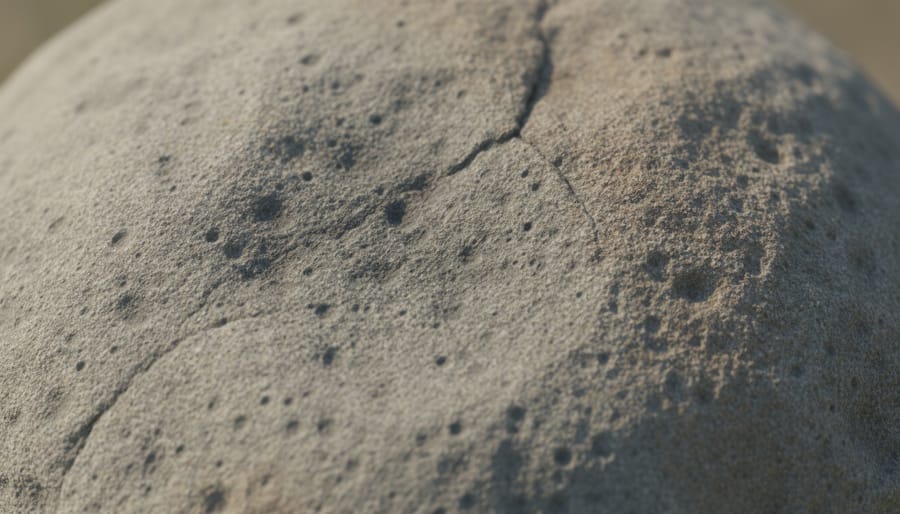
Processing and Refining Your Stone Model
Once you’ve captured your stone images, the processing stage transforms your photos into a usable 3D asset. Most iOS photogrammetry apps handle the heavy lifting automatically, but understanding the workflow helps you achieve professional results for stone modeling applications.
Modern iOS apps like Polycam, 3D Scanner App, and RoomPlan process your images directly on the device, generating an initial mesh within minutes. The app stitches your overlapping photos together, reconstructing the stone’s geometry and automatically mapping the texture from your captured images. For simple projects like countertop samples or small stone tiles, this on-device processing often delivers sufficient quality for client presentations and preliminary design work.
For larger installations or when you need maximum detail, export your image set to desktop software. Applications like Agisoft Metashape, RealityCapture, or Autodesk ReCap Photo offer more control over mesh density, texture resolution, and alignment refinement. This matters particularly for natural stone, where capturing subtle veining patterns and color variations requires higher processing settings than default mobile outputs provide.
Scaling represents a critical step that many beginners overlook. Your photogrammetric model exists in arbitrary units until you apply real-world dimensions. Use the reference measurements you established during scanning to scale the mesh accurately. Most apps let you set a known distance between two points, automatically adjusting the entire model to match. For stone fabrication templates, verify dimensions at multiple points across the surface.
Cleaning artifacts improves model quality significantly. Photogrammetry often captures surrounding objects, shadows, or creates holes in areas with insufficient image overlap. Trim away unwanted geometry using your app’s editing tools, and fill small gaps with simple geometry patches. For reflective polished stone surfaces, you may need to manually adjust areas where glare caused reconstruction failures.
Texture optimization ensures your stone’s visual character translates accurately. Check that veining patterns align correctly with the mesh geometry, and adjust color balance if your lighting skewed the stone’s natural appearance. Advanced workflows can integrate AI stone mapping to enhance pattern recognition and texture fidelity beyond what photogrammetry alone captures.
Export format depends on your intended use. OBJ files with accompanying texture maps work universally for visualization and client presentations. FBX format preserves more metadata for integration with architectural design software. For fabrication workflows, many CNC systems prefer STEP or IGES formats, which you can generate from your refined mesh using CAD conversion tools.
Verifying Accuracy and Model Quality
After processing your scan, spend time validating the model before integrating it into your workflow. Begin by comparing key dimensions against your physical reference measurements. Open the model in your iOS app or preferred viewer and use the measurement tools to check the length, width, and height of the stone surface. For countertop and flooring applications, aim for accuracy within 1-2 millimeters. Architectural facade work can tolerate 5-10 millimeters, while detailed sculptural documentation should hit sub-millimeter precision.
Check texture fidelity by zooming into areas with distinctive veining or crystal patterns. The digital version should clearly show the same vein pathways, color transitions, and surface characteristics you see on the physical stone. Compare photos of the actual stone side-by-side with rendered views of your model. If veining looks blurred or colors appear washed out, you likely need better lighting or higher overlap in your next capture.
Rotate the model to inspect all surfaces and angles. Look for holes, distorted geometry, or missing sections where the software couldn’t reconstruct the surface. These gaps typically occur in highly reflective areas, deep recesses, or spots where photo coverage was insufficient. Check edges and corners especially carefully, as these often present challenges for reconstruction algorithms.
Before using the model professionally, verify these quality benchmarks:
- All critical dimensions match physical measurements within acceptable tolerance
- Veining patterns and color variations are clearly visible and accurate
- No significant holes, distortions, or missing geometry in visible areas
- Surface texture appears consistent without blurring or artificial smoothing
- Model scales correctly when imported into your design software
- File format exports properly and retains detail for intended application
Test the model in its intended context. Import it into your CAD or BIM software and place it in a design scenario. Does it align properly with other elements? Can you apply materials and lighting realistically? For fabrication work, send a test section to your CNC software to verify toolpath generation works correctly.
If the model fails multiple quality checks or shows dimensional errors exceeding your tolerance, rescan rather than trying to fix fundamental flaws in post-processing. Pay particular attention to the areas that failed and adjust your capture technique accordingly.
Practical Applications in Stone Industry Workflows
Once you’ve created accurate photogrammetric models of stone, they become versatile assets throughout professional workflows. These digital representations integrate seamlessly into modern design and fabrication processes, often delivering immediate value.
For architects and designers, these models import directly into CAD and BIM software as textured meshes or converted to solid geometry. You can wrap scanned marble textures onto design surfaces, verify how existing stone installations relate to proposed additions, or incorporate authentic material representations into client presentations. A Chicago-based architect recently scanned historic limestone from a 1920s building facade, then used that model to specify matching replacements for damaged sections, ensuring visual continuity that would have been impossible to achieve from photographs alone.
Fabricators use these models for precise templating, especially when working with complex edge profiles or matching veining patterns across multiple slabs. The dimensional accuracy you verified earlier translates directly to CNC toolpath generation, reducing material waste and installation errors. One Colorado fabricator reported cutting countertop templating time by 40% after adopting iOS scanning for unusual angles and curved walls.
The models also excel at documenting existing installations for renovation work. Instead of relying on decades-old drawings or rough field measurements, contractors can reference exact stone measurement data captured in minutes. This proves invaluable when planning additions to heritage buildings or coordinating mechanical systems around ornate stonework.
Building comprehensive material libraries represents another practical application. Scan representative samples from each stone type you specify regularly, creating 3D digital twins clients can explore remotely. Interior designers appreciate being able to show homeowners exactly how Calacatta veining varies from slab to slab before making selections.
For advanced applications, these models feed into parametric stone design workflows, enabling algorithmic pattern generation that respects actual material characteristics. Historical preservation teams use iOS scanning to archive deteriorating stonework, creating permanent digital records before restoration or as documentation if original elements are lost.
Common Questions About iOS Photogrammetry for Stone
iOS photogrammetry for stone raises several practical questions, especially for professionals evaluating whether the technology fits their workflow and budget.
Which iOS apps work best for scanning stone in 2026?
Polycam and 3D Scanner App lead the field for stone applications, offering LiDAR integration and detailed texture capture. Scaniverse provides excellent free scanning capabilities, while RealityCapture (iOS version) delivers professional-grade results for complex stone installations.
How does iOS photogrammetry compare to professional 3D scanners for stone work?
Professional scanners offer higher precision (submillimeter accuracy) and faster capture, making them essential for fabrication-critical work. iOS devices excel at capturing texture and color fidelity at a fraction of the cost, making them ideal for design visualization, client presentations, and material documentation where tolerances of 2-5mm are acceptable.
Can I use iOS-scanned stone models in CAD and fabrication software?
Yes, most iOS photogrammetry apps export to standard formats like OBJ, FBX, and USDZ that integrate directly with AutoCAD, Revit, SketchUp, and fabrication platforms. You’ll need to verify scale accuracy and may need to convert mesh files to solid geometry for CNC machining applications.
Does scanning work better indoors or outdoors?
Indoor scanning typically produces more consistent results because you control the lighting and eliminate variables like wind movement and changing sun angles. Outdoor stone installations can be scanned successfully with overcast conditions or diffused natural light, but bright sunshine creates harsh shadows and reflections that compromise model quality.
For smaller fabrication shops and independent designers, iOS photogrammetry represents a practical entry point into digital stone modeling without the substantial investment required for dedicated scanning equipment. The technology has matured to where iPhone 15 Pro models and recent iPad Pros deliver results suitable for most architectural and design applications. Larger operations often use iOS scanning as a field documentation tool while reserving professional scanners for precision fabrication work, creating a complementary workflow that balances cost, speed, and accuracy requirements.
iOS photogrammetry has transformed digital stone modeling from a specialized, expensive process into something accessible to anyone with a modern iPhone or iPad. Whether you’re an architect documenting a heritage facade, a fabricator creating templates, or a designer building a material library, the combination of LiDAR-equipped iOS devices and capable apps delivers professional results without the investment in dedicated scanning equipment.
The technology continues advancing rapidly. Each iOS update brings improved depth sensing, faster processing, and better texture capture, making your models more accurate and detailed. Start with a simple project: scan a stone sample, a countertop edge, or a small installation. You’ll quickly discover how this workflow fits into your existing processes and where it adds the most value.
The barrier to entry has never been lower, and the applications keep expanding. Your iOS device is ready. The stone is waiting.